CRM Lead Import & Sync
To access this feature, open your CRM Dashboard and click on CRM Sync. From the dropdown menu, select Import Leads to open the lead upload and column mapping page.
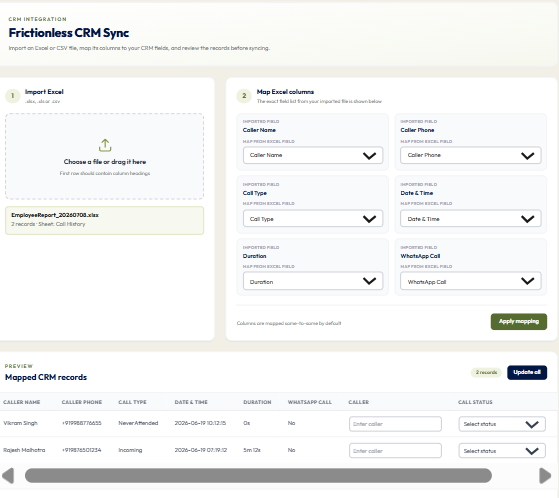
Setup Instructions
Step 1
If you want to import a new lead spreadsheet, click on the Download Sample Format button to inspect required columns.
Step 2
Ensure your Excel (.xlsx, .xls) or CSV spreadsheet separates leadName, countryCode (+91), and mobileNumber into distinct columns.
Step 3
Drag and drop your spreadsheet into the upload zone or click Browse Files.
Step 4
An interactive column mapping table will open. Verify that each spreadsheet column matches the target DialSummary CRM field.
Step 5
Review the pre-import validation summary to identify duplicate phone numbers or formatting flags.
Step 6
Click the Apply Mapping & Import button to commit the verified records into the system.
Step 7
From the imported leads roster, select leads and click Assign to User to allocate ownership to telecallers.
Got Questions?
Frequently Asked Questions
DialSummary supports .xlsx, .xls, and .csv file formats with up to 5,000 data rows per batch upload.
During import, you can choose to skip existing duplicate phone numbers, update current lead records, or append new call notes.
Telecallers receive instant push alerts on their Android mobile app, and the newly assigned contacts appear at the top of their follow-up list.